
1. What this plugin does
WP Media Plus replaces the default WordPress Media Library with a modern asset-management workspace. Organize media into virtual folders, filter and search, edit multilingual metadata, see where files are used, find unused and duplicate files, optimize and edit images, and optionally use AI (Bring Your Own Key) for descriptions and ALT text.
| Edition | Includes | License |
|---|---|---|
| Free | Library, upload, virtual folders, advanced filters, bulk assign/delete, Inspector, WordPress media modal picker | No key required |
| Pro | Everything in Free, plus AI (BYOK), smart views, health / unused / duplicates, image tools, rename, system status | Active license |
Prefer to try before installing? Use Live Demo for a temporary Pro sandbox (no install required).
2. Install & first launch
- Download the Free zip, or Pro after purchase from your account.
- Upload via Plugins → Add New → Upload Plugin, or copy the folder into
wp-content/plugins/. - Activate WP Media Plus.
- Open Media → WP Media Plus.
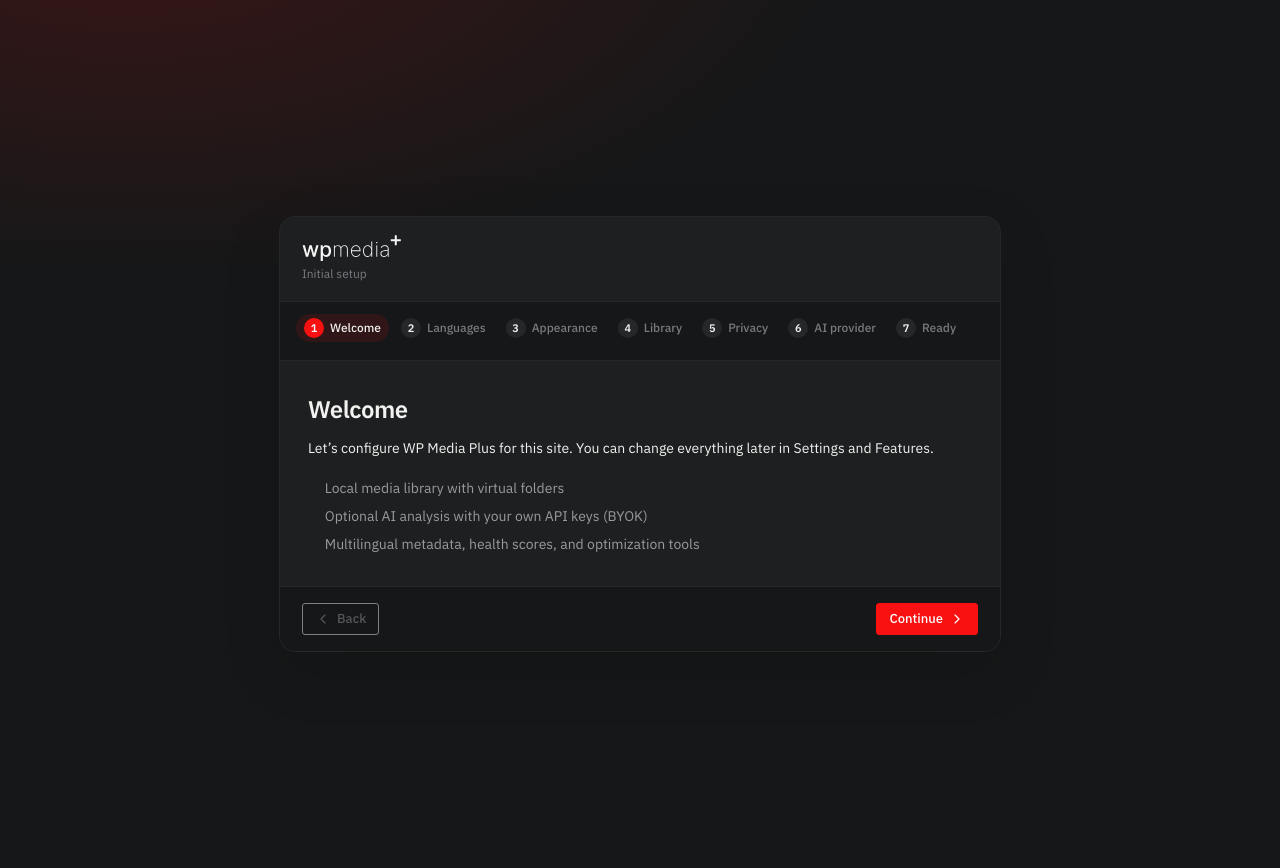
- Complete the setup wizard (languages, appearance, privacy, optional AI key).
- Finishing the wizard starts a full library index when attachments are not indexed yet. You can also run Settings → Maintenance → Index library anytime.
Requirements: WordPress 6.4+ and PHP 8.1+. Admin UI languages: English, Italian, French, German, Spanish, and Portuguese.
3. Media Library
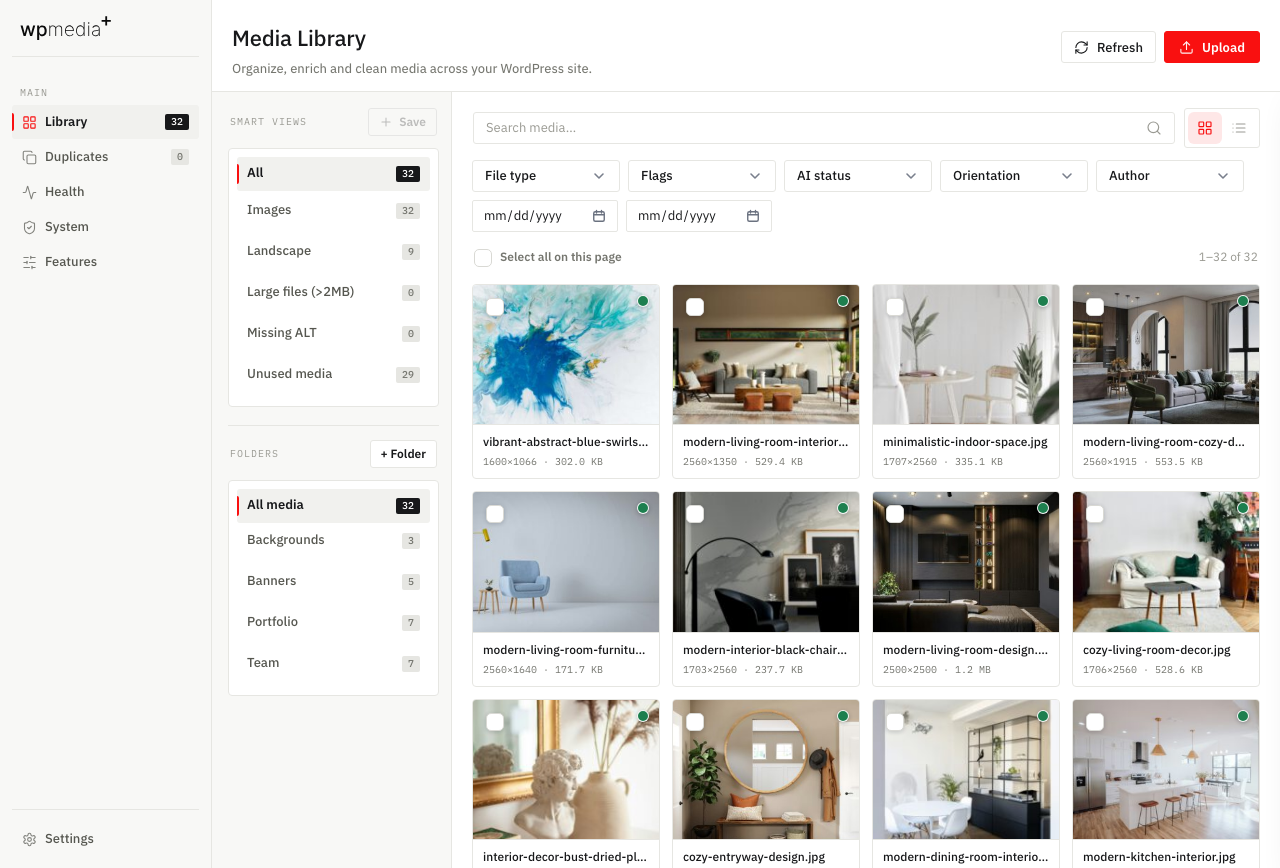
The Library is the home screen. Left: plugin navigation and virtual folders. Center: media grid or list. Right: the Inspector when an item is selected.
Virtual foldersFree
- Click + Folder to create a folder.
- Assign media from the Inspector or with bulk actions.
- Files stay in WordPress
uploads— folders are organizational only.
Search & filters Free
- Search — filename, title, and AI description text.
- File type — images, video, audio, documents, and more.
- Flags — missing ALT, large files, unused, and similar.
- AI status — pending, analyzing, analyzed, failed.
- Orientation, author, date range — further refine the view.
Smart views Pro
Save filter shortcuts in the sidebar (for example unused, missing ALT, large files, or a custom combination). Rename, update, or delete views anytime — they do not move files.
Views, selection & upload Free
- Switch between Grid and List.
- Select items for bulk folder assign or delete (always confirmed).
- Use Upload in the top bar — new files are indexed automatically.
- With Pro + AI, the upload dialog can analyze images and optionally AI rename on upload.
WordPress media modalFree
When inserting media in the editor or classic media frame, WP Media Plus adds folders, search, and smart shortcuts (unused / missing ALT / large) so you pick files without leaving the post.
4. Inspector
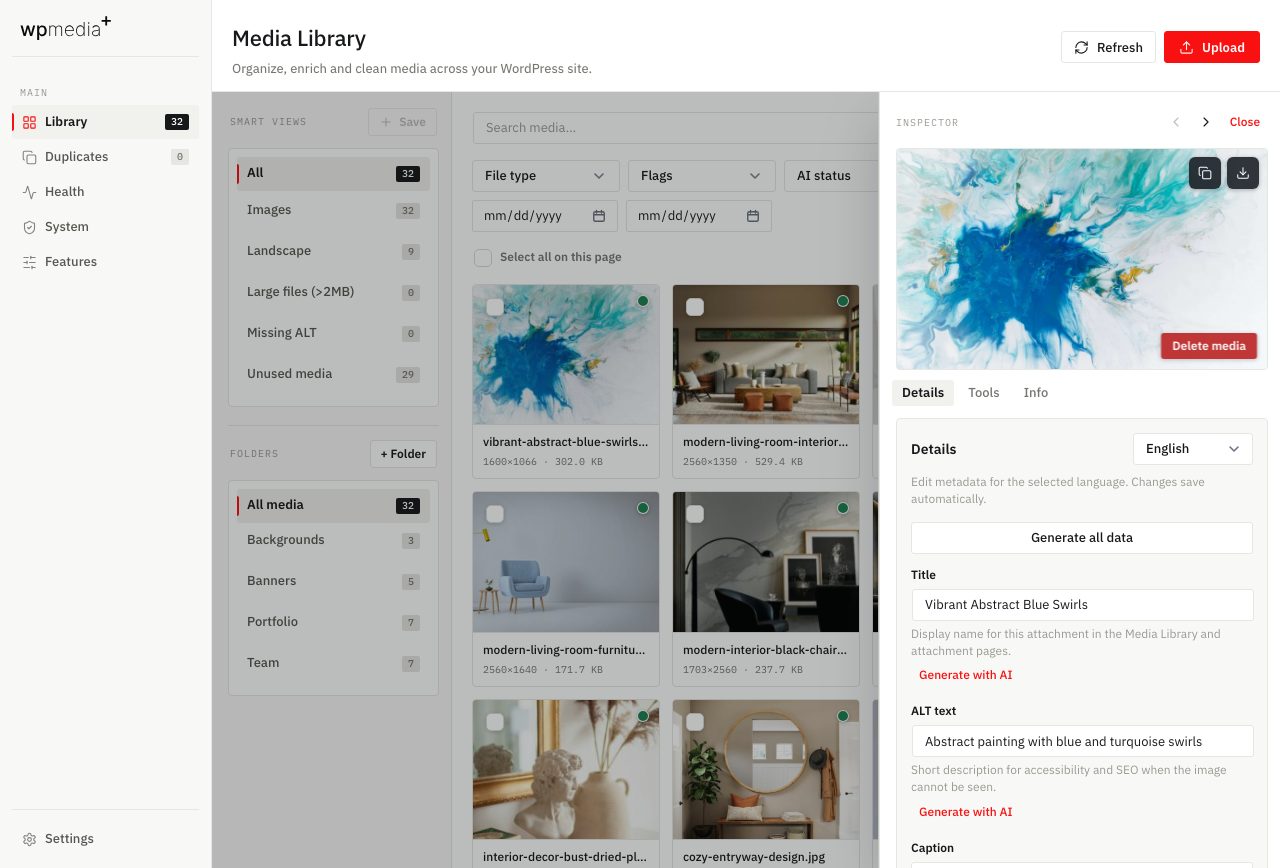
Click any media item to open the Inspector (Details, Tools, Info). Use previous/next in the header to move through the current list without closing the panel. The preview also offers Copy URL and Download.
Details tab
- Locale — edit metadata for each enabled language Pro.
- Generate all data — one AI pass for title, ALT, caption, and description AI.
- Generate with AI — regenerate a single field AI.
- Manual edits autosave. Usage shows references; Rescan refreshes Pro.
- Folders — assign or remove membership. Delete always confirms first.
- With WPML or Polylang, front-end ALT can follow the current language when multilingual metadata is filled.
5. AI features (Bring Your Own Key) Pro
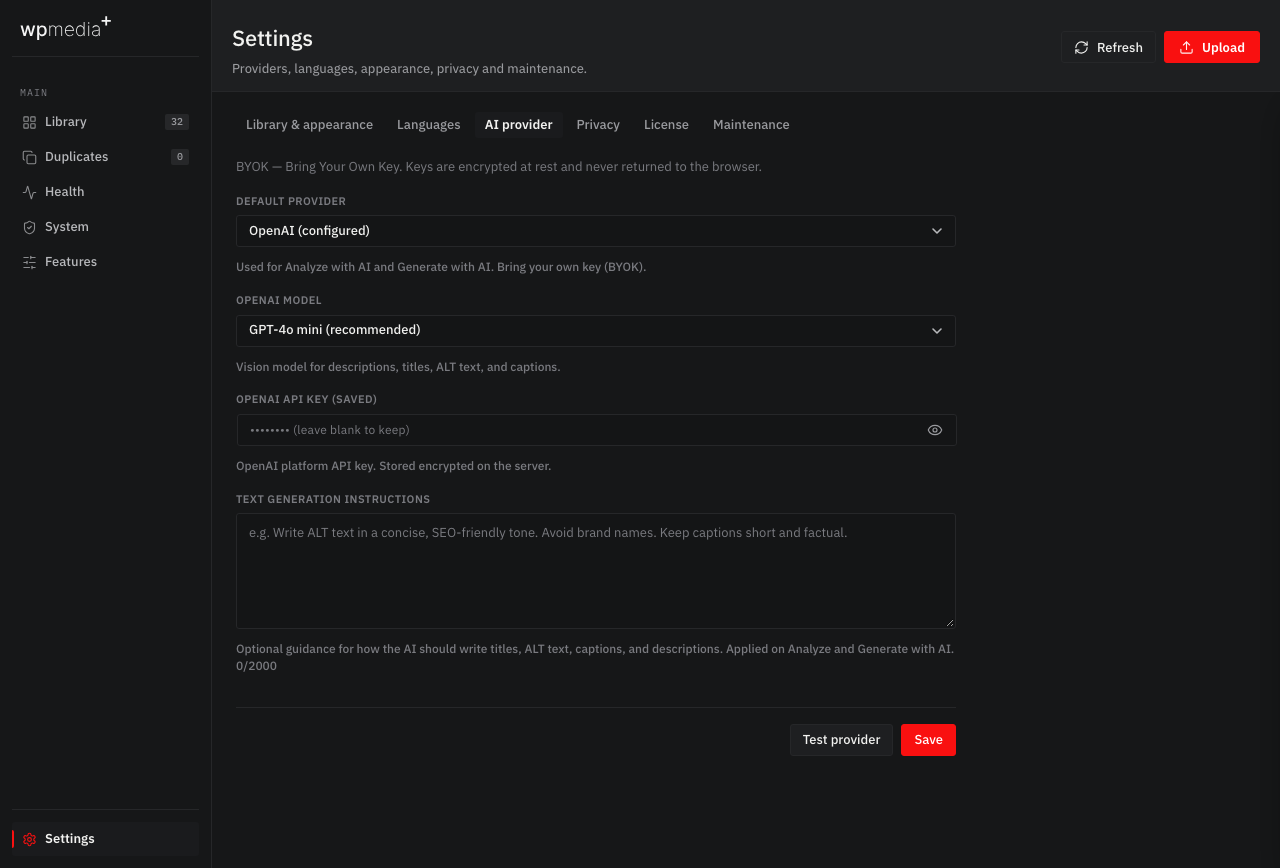
AI is optional and Pro-only. Configure a provider under Settings → AI provider, paste your API key, pick a model, then use Test provider. Supported providers: OpenAI, Google Gemini, Anthropic, OpenRouter, xAI (Grok), Mistral, and custom OpenAI-compatible endpoints.
| Capability | What it does | Needs AI key? |
|---|---|---|
| AI image analysis | Vision pass → description, subjects, tags | Yes |
| AI metadata generation | Title, ALT, caption, description | Yes |
| Bulk ALT generation | Multi-item ALT with progress, recap, and confirm before apply | Yes |
| AI rename on upload | After vision, rename the file to a descriptive SEO-friendly name and update references | Yes |
| Multilingual metadata | Per-locale fields in the Inspector | No (AI can fill them) |
| AI writing instructions | Optional guidance in Settings for how AI writes titles, ALT, captions, and descriptions | Yes (when generating) |
6. Image tools Pro
Open Inspector → Tools on an image. Tools that change the file keep a backup so you can restore.
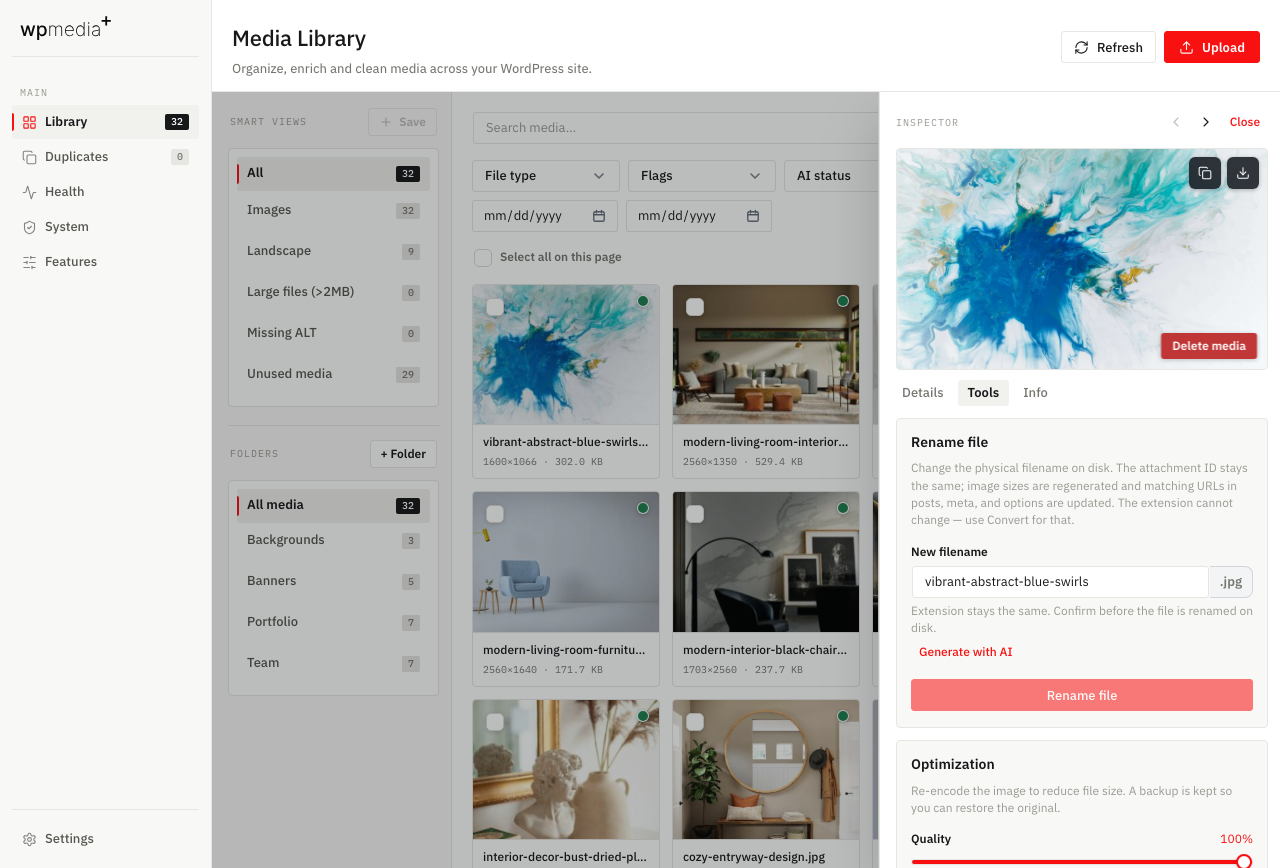
| Tool | What it does |
|---|---|
| Optimization | Re-encode with quality slider; preview estimated size; restore from backup. |
| Crop & rotate | Framing and orientation; regenerates thumbnails. |
| Resize | Exact size or presets; upscaling disabled. |
| Format conversion | JPEG / PNG / WebP (AVIF when supported); same attachment ID. |
| Remove background | Local in-browser; saves transparent PNG. |
| Replace file | Swap the binary; keep the same attachment ID and references. |
| Rename file | Safely rename the physical filename, regenerate sizes, and update URL references site-wide (preview + confirm). |
7. Health, unused & duplicates Pro
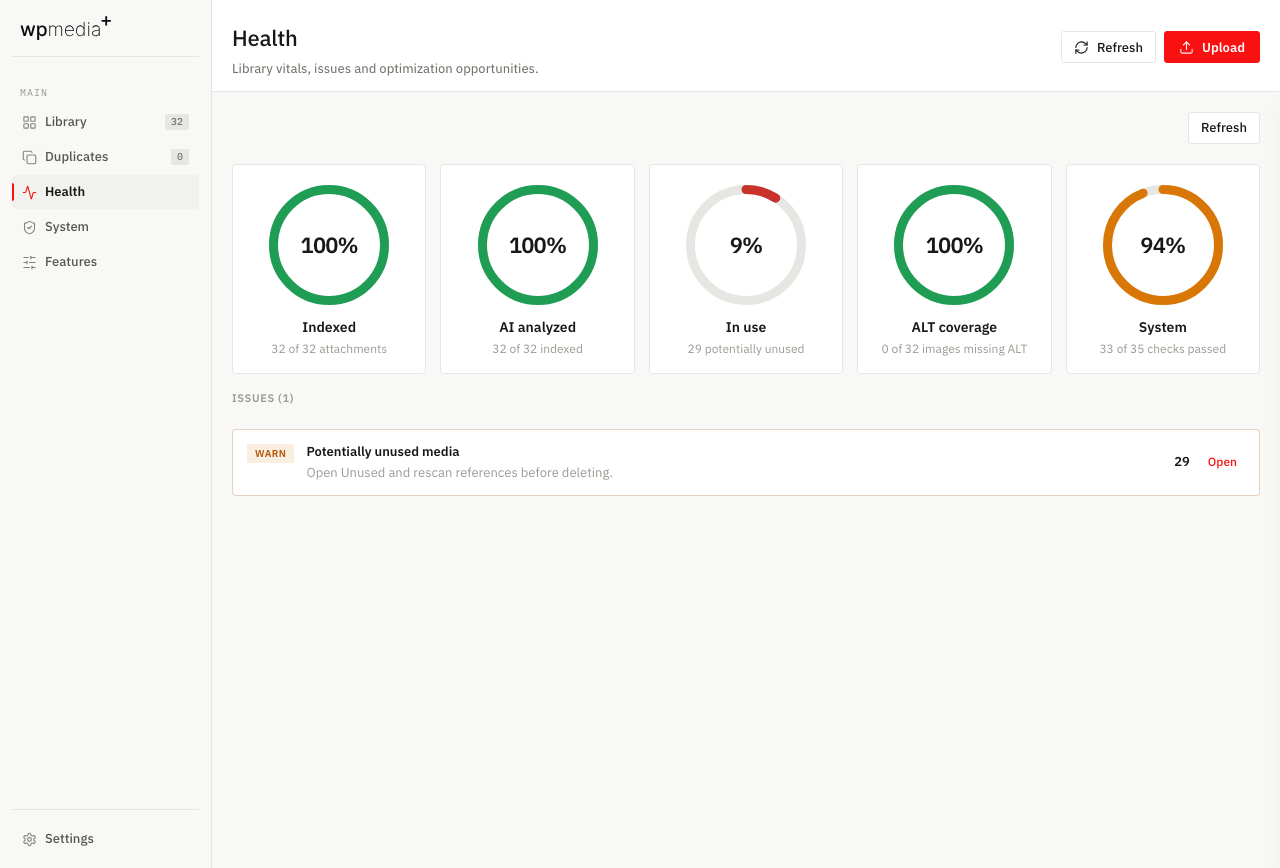
Health
Health shows library vitals and actionable issues (unused media, missing ALT, failed AI, large files).
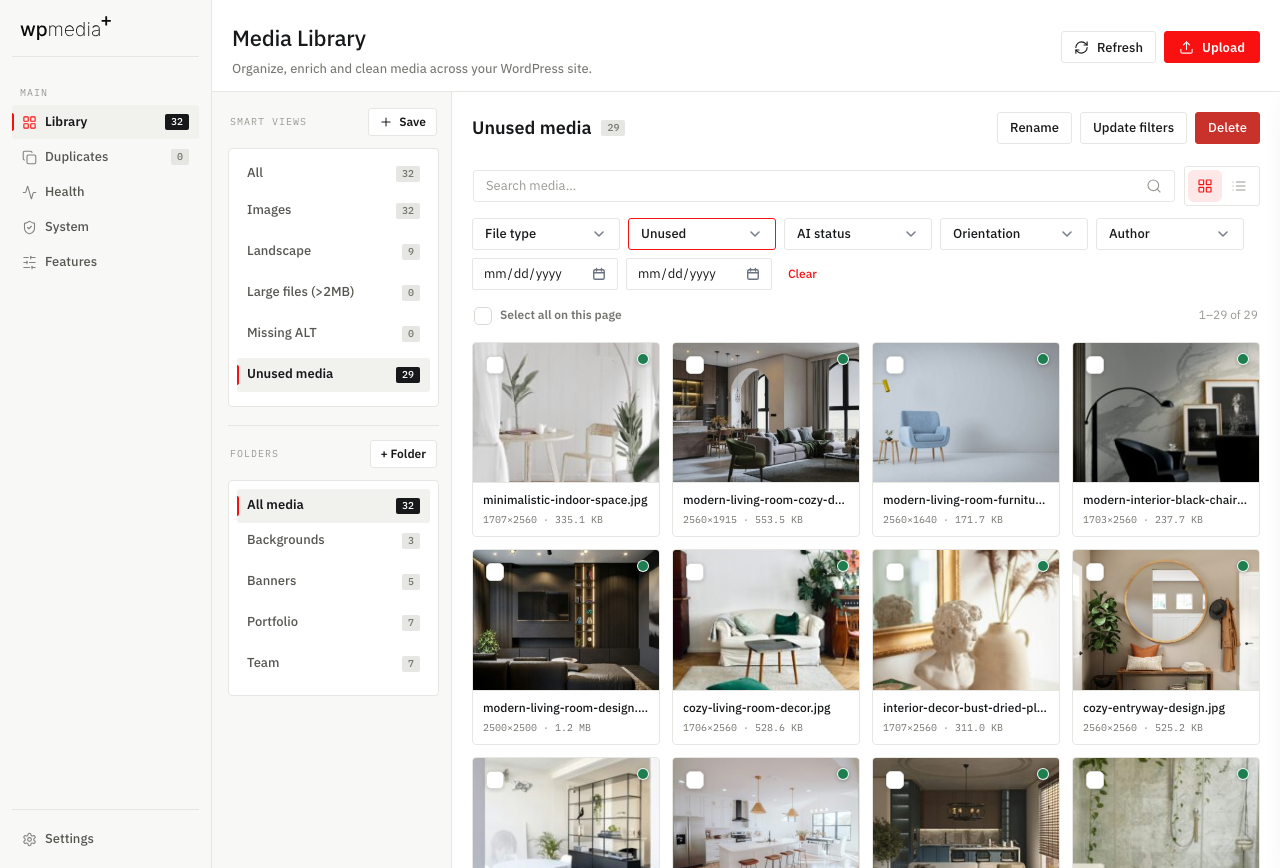
Unused media
Reach unused items from Health or Flags → Unused. Always rescan usage before deleting — references can live in posts, meta, options, Elementor, Bricks, WooCommerce, and more.
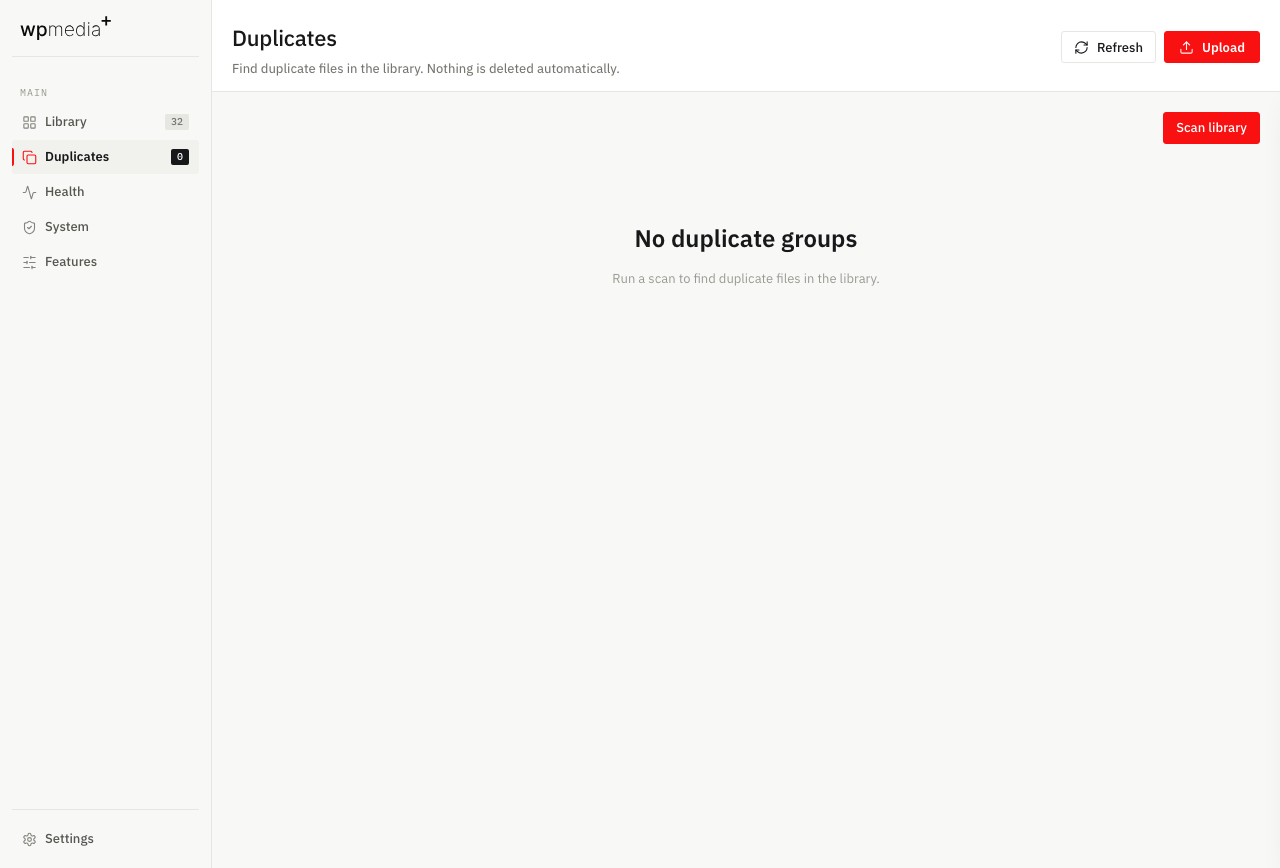
Duplicates
Exact matches (SHA-256) and near-duplicates (perceptual hashing). Nothing is deleted automatically — review groups first. Groups refresh after you remove missing or orphaned attachments.
System status
Environment checks, PHP limits, and plugin diagnostics — useful when jobs stall or uploads fail on large libraries.
8. Settings & Features
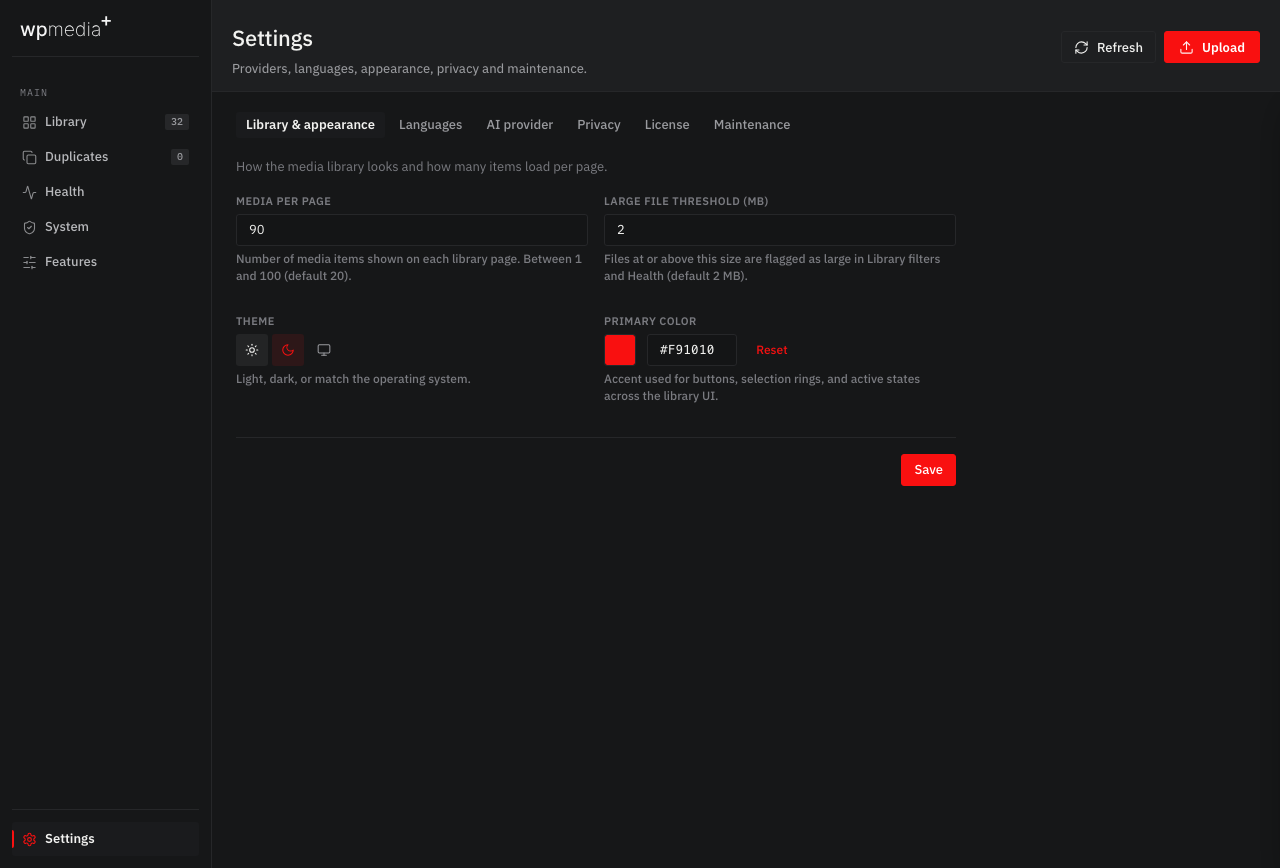
- Library & appearance — page size, large-file threshold, theme, primary color.
- Languages — default locale and enabled languages for metadata.
- AI provider — BYOK keys, models, and optional writing instructions for titles / ALT / captions / descriptions.
- Privacy — strip EXIF, reduce preview size, never send originals.
- Maintenance — index library, rebuild usage, relaunch wizard, uninstall mode.
- License (Pro package) — activate Personal / Freelancer / Agency; staging domains (
localhost,*.local,*.test, common hosts) do not consume seats.
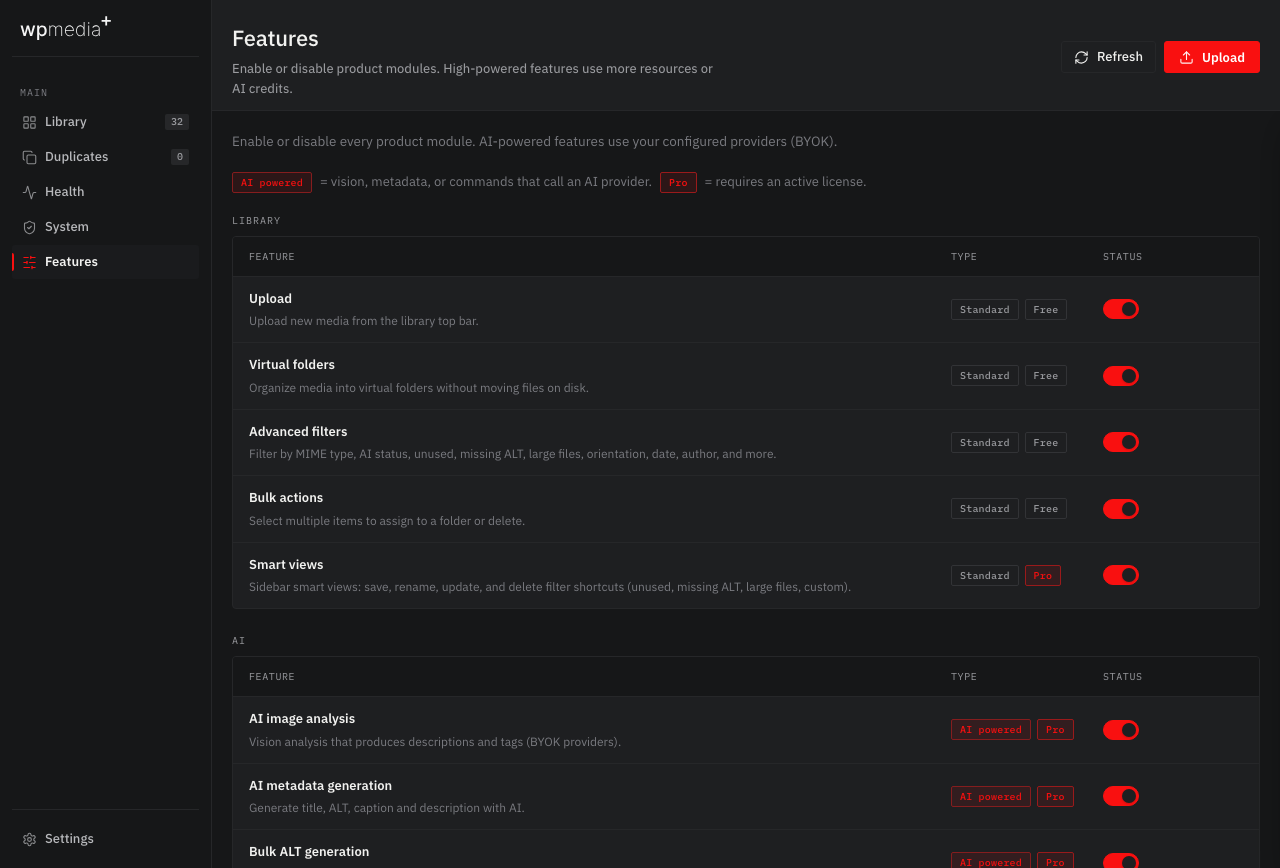
On the Features page, every product module can be toggled. AI-powered modules are marked clearly. Pro modules require an active license before they can be turned on.
9. Privacy, jobs & uninstall
Privacy when using AI
- Strip EXIF before sending images to providers.
- Send reduced-size previews only.
- Never send original full-resolution files (when enabled).
Background jobs
Indexing, AI analysis, metadata generation, reference scans, and duplicate scans run as background jobs (Action Scheduler when available, otherwise WordPress Cron with a browser-driven runner).
Uninstall
- Keep data (default) — plugin tables/options remain if you remove the plugin.
- Delete plugin data — removes plugin tables/options on uninstall.
- WordPress attachments and files in
uploadsare never deleted by this plugin.
10. Quick reference
| Feature | Tier | Where |
|---|---|---|
| Library, upload, folders, filters, bulk assign/delete | Free | Library |
| Media modal picker | Free | WP media frame |
| Smart views | Pro | Library sidebar |
| AI analysis | AI Pro | Bulk / upload / jobs |
| AI metadata & bulk ALT | AI Pro | Inspector / bulk |
| AI rename on upload | AI Pro | Upload dialog |
| Multilingual metadata | Pro | Inspector → Details |
| Optimize / crop / resize / convert / BG remove / replace / rename | Pro | Inspector → Tools |
| Usage, unused, duplicates, health, system | Pro | Insights pages |
| Feature toggles | All | Features page |
Need help?
Check the changelog, browse support, or email support@wpmediaplus.com.